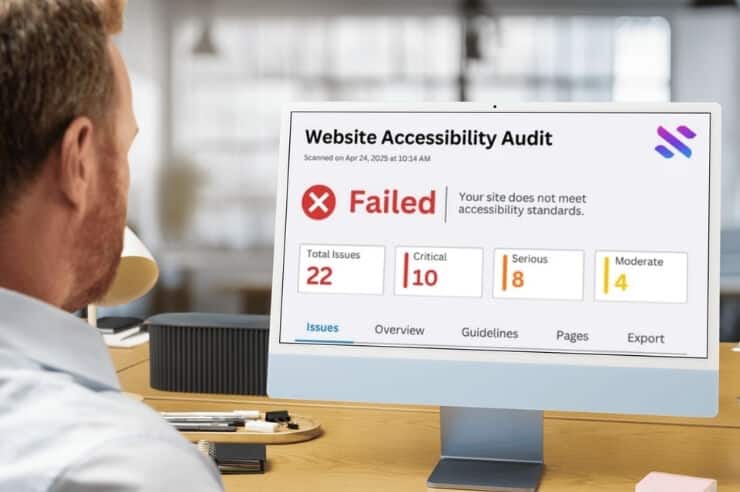
Website accessibility issues are easy to miss, especially when your site looks and works fine to you. However, chances are, yours has a few. In WebAIM’s 2026 analysis of the top one million home pages, 95.9% had detectable WCAG 2 failures, and the average page carried 56.1 detectable errors. That’s not a knock on your site. It’s just where the web is right now.
The good news is that most of these problems are surprisingly predictable. The same handful of issues show up on site after site, year after year, which means once you know what to look for, they’re pretty easy to spot. In this article, we’ll walk through the most common website accessibility issues, how to check your own site for them, and what it takes to fix them for good.
Why Website Accessibility Issues Matter
Website accessibility issues can limit a user’s experience or, at times, even keep them from using your website. For example, if you don’t have image alt text (descriptions), a blind person won’t be able to understand them. Or if someone can’t use a mouse, they may have issues opening up menus or links. When your website visitors experience these issues, they leave. In some cases, they become frustrated enough that they don’t come back.
There are also legal implications, too. The Department of Justice has made it clear that the ADA applies to the websites of businesses open to the public, and sites with the exact issues covered below remain frequent targets of accessibility lawsuits, one of the costliest consequences of ADA non-compliance a business can face.
For state and local governments, the standard is even more defined. The 2024 DOJ rule adopted WCAG 2.1 Level AA as the technical standard, and under an April 2026 interim rule, larger public entities now have until April 26, 2027, while smaller entities and special district governments have until April 26, 2028.
8 of the Most Common Website Accessibility Issues
Most of the problems we uncover in website ADA compliance reviews trace back to the same eight culprits. Here’s how to spot each one and what it takes to fix it.
1. Missing or Poor Alt Text on Images

Alt text is a short written description of an image that screen readers read aloud to people who can’t see it. When it’s missing, a screen reader user either hears nothing or hears a meaningless file name like “IMG_4827.jpg.”
If you have this issue, you’re not alone. It’s pretty common. In fact, WebAIM found that 16.2% of all homepage images were missing alternative text, and even when alt text exists, it isn’t always helpful. About 10.8% of images with alt text used vague or repetitive descriptions, such as “image,” “graphic,” or a file name.
How to fix it: Describe what the image communicates, not just what it shows. A photo of your team at a community event might read “Oyova team volunteering at a Jacksonville beach cleanup.” Keeping descriptions short and specific is one of the most important alt text best practices, since screen reader users hear every word.
2. Low Color Contrast
Low contrast happens when text doesn’t stand out enough from its background, like light gray text on a white page. It’s hard to read for people with poor vision or color blindness. It can even be hard for someone on a phone in direct sunlight.
In fact, low contrast text showed up on 83.9% of home pages, making it the most commonly detected accessibility issue, with an average of 34 instances per page.
How to fix it: WCAG AA calls for a contrast ratio of at least 4.5 to 1 for regular text and 3 to 1 for large text. Run your brand colors through the free WebAIM contrast checker and adjust any combinations that fall short. Often a slightly darker shade of the same color does the trick without changing your brand’s look.
3. Keyboard Navigation Barriers
Many people navigate the web using only a keyboard, including people with motor disabilities and those who use screen readers. If your menus, buttons, pop-ups, or forms can’t be reached and used with the Tab, Enter, and arrow keys, those visitors are stuck.
Dropdown menus, pop-ups, and other interactive elements can create problems for keyboard users. For example, a menu that works with a mouse but not with the keyboard can prevent someone from reaching the rest of the site. A pop-up can cause a similar problem if the keyboard focus gets stuck inside it. Removing the visible focus indicator can also make it difficult to tell where you are on the page.
Skip links are another part of keyboard accessibility that can be overlooked. WebAIM found a skip link on just 17.1% of homepages in its analysis, and about 1 in 10 of those links didn’t work. Only 17.1% of home pages had a skip link.
How to fix it: Make sure every clickable part of your site, like buttons, links, menus, and form fields, can be reached and used with a keyboard. As someone tabs through the page, a visible outline or highlight should show which item they’re on. It also helps to add a “skip to main content” link at the top of each page. It stays hidden until someone presses Tab, then lets keyboard users jump past the navigation menu instead of tabbing through every link to reach the content.
4. Missing Form Labels
A form field should make it clear what information belongs there. If a field doesn’t have a proper label, someone using a screen reader may hear something like “edit text, blank” instead of being told to enter their name, email address, or phone number.
The WebAIM Million report found missing form input labels on 51% of home pages, while about one-third of individual form inputs were not properly labeled. For businesses, this can create an unnecessary obstacle on forms visitors use to request information, make purchases, or get in touch.
How to fix it: Give each field its own label and connect that label to the field in the site’s code. A placeholder isn’t enough because it disappears once a visitor starts typing. If someone makes a mistake, the form should explain what to correct rather than simply showing that something went wrong. This matters even more in accessible checkout processes, where a confusing form can cause a customer to leave before finishing the purchase.
5. Inaccessible PDFs and Documents
PDFs are common on business websites, from applications and brochures to reports and other downloadable resources. The problem is that assistive technology can’t always read every PDF properly. A scanned document, for example, may contain only images of words rather than actual text. Even a PDF with selectable text can be difficult to navigate if its headings, tags, or reading order aren’t set up correctly.
How to fix it: If the information is important to visitors, consider putting it on a regular web page instead of making them download a PDF. When a PDF is necessary, check that the text can be selected and read by assistive technology. Headings, reading order, and image descriptions should also be set up correctly so the document makes sense from start to finish.
6. Missing Video Captions or Transcripts

Video without captions excludes deaf and hard-of-hearing viewers, as well as many people who watch videos with the sound off. Audio-only content like podcasts needs transcripts for the same reason.
How to fix it: Check that your videos have captions that match what is actually being said, and give audio content a written transcript. Automatic captions can save time, but they aren’t always accurate. Names, technical terms, and punctuation are common trouble spots, so review the captions before the video goes live. If viewers need to see something on screen to understand the video, they may also need an audio description.
7. Poor Heading Structure
Headings do more than break up a page visually. For someone using a screen reader, they provide a way to move through the page and find specific sections without reading everything from top to bottom. WebAIM identifies headings as a primary navigation method for screen reader users.
When headings are chosen based on font size rather than structure, that navigation falls apart. Skipped heading levels appeared on 41.8% of pages, and 18.1% of homepages had more than one H1.
How to fix it: Think of your headings as an outline for the page. The main topic gets the H1, major sections use H2s, and smaller sections can sit underneath them as H3s. Try not to jump from an H2 straight to an H4 just because the smaller heading looks better. If you want to change the appearance of a heading, use CSS rather than choosing a different heading level. A well-organized page can also make content easier for search engines to interpret, another connection between ADA compliance and SEO.
8. Missing or Misused ARIA Labels
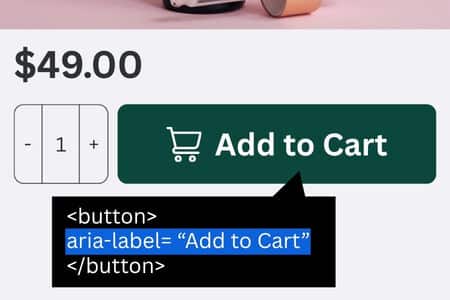
ARIA gives assistive technology extra information about parts of a website that aren’t always clear from the HTML alone. It can be useful for things such as custom menus, dialogs, and icon buttons. The catch is that adding ARIA doesn’t automatically make an element accessible. Incorrect markup can actually make the experience more confusing.
One common example is a button or link that contains an icon but doesn’t have a text label for a screen reader to announce. The WebAIM Million report found empty links on 46.3% of home pages and empty buttons on 30.6%. ARIA can cause problems in other ways, too. Pages that used ARIA averaged 59.1 accessibility errors in WebAIM’s analysis, compared with 42 errors on pages without ARIA.
How to fix it: Use regular HTML elements when they already do what you need. Give buttons and links enough text for a screen reader to identify their purpose, even when the visual design only shows an icon. ARIA can be useful for more complicated components, but adding it just for the sake of adding it can create more accessibility problems.
How to Check Your Website for Accessibility Issues
You don’t need special training to get a rough sense of where your site stands. Try these quick checks on your homepage and a few key pages.
- Use your keyboard to move through the page. Put the mouse aside and use the Tab key to see whether you can reach everything and always tell where you are.
- Increase the browser zoom to 200%. Look for text that’s hard to read, content that’s hidden, or anything that no longer fits properly.
- Run a few important pages through WAVE, the free accessibility evaluation tool. It can flag missing alt text, contrast issues, and empty links.
- Check your video captions. Turn them on and read along to see whether they accurately match what’s being said.
- Try a screen reader. VoiceOver on Mac and NVDA on Windows are free options that can show you how your navigation, links, and forms are announced.
These checks are a great starting point, but they won’t catch everything. Even WebAIM points out that automated tools have limits and that a page with no detected errors isn’t necessarily accessible.
These checks are a great starting point, but they won’t catch everything. Even WebAIM points out that automated tools have limits and that a page with no detected errors isn’t necessarily accessible.
A full website accessibility audit fills those gaps by pairing automated scans with hands-on manual testing, then measuring your site against the ADA compliance levels defined by WCAG, with AA being the standard most businesses aim for. Oyova’s team can take on that process for you and show you exactly where your site stands.
Can You Fix Website Accessibility Issues Yourself?

The good news is that several of these fixes are easy to handle in-house. You can usually write alt text, edit video captions, and clean up heading order without touching any code. Keyboard navigation, form labels, and ARIA are a different story, since they tend to live in your site’s code and typically need a developer to fix correctly.
That said, many website accessibility issues live deep in templates, themes, plugins, and third-party tools, where a quick content edit won’t reach them. Professional website accessibility remediation fixes those root causes in the code, so the fixes hold up across every page and through future site updates. It also saves your team the hours it takes to learn WCAG and test with assistive technology, and gives you a record of the work if your site’s accessibility is ever questioned.
That site-wide approach is why an overlay alone rarely solves the problem, since accessibility widgets mask issues on the surface instead of fixing them.
Get a Professional Accessibility Audit

Website accessibility issues are common, but they’re also fixable. Most sites struggle with the same handful of problems, and addressing them makes your website easier to use for everyone, lowers your legal risk, and often improves your search performance along the way.
The hardest part is usually knowing exactly what’s wrong and where. Oyova’s ADA compliance audit and remediation services pair automated scanning with manual testing to find the issues tools miss, then our developers fix them at the source so your site stays accessible as it grows.
If you’ve been wondering whether your site has accessibility problems, we’ll help you find out and fix them.
Disclaimer: The information provided in this blog is for general informational purposes only and is not intended as legal advice. The contents of this blog may not reflect the most current legal standards or interpretations. Please consult with a qualified attorney for specific legal advice regarding ADA compliance or other legal issues. Oyova does not guarantee the accuracy, completeness, or usefulness of any information on this site and is not responsible for any errors, omissions, or results obtained from using this information.
FAQs
First, find the problems. You can check your site manually and use a free tool such as WAVE to catch common issues. Things like missing alt text, vague link text, or videos without captions can usually be updated in your CMS. If the problem comes from your theme, templates, plugins, or site code, you may need a developer to make the change.
Low color contrast is currently the most common accessibility issue found on websites. WebAIM’s 2026 analysis found it on 83.9% of the top one million home pages. Other frequent problems included missing image alt text, form fields without labels, and empty links or buttons.
A few simple checks can give you a good starting point. Try moving through your site with a keyboard, zoom the page to 200%, and run important pages through an accessibility checker such as WAVE. Keep in mind that automated tools won’t catch every problem. Manual testing, and in many cases a professional accessibility audit, can uncover issues those tools miss.
Not every accessibility problem requires a developer. You can take care of things like adding image descriptions, fixing heading levels, and providing captions for videos. More technical problems can be another story, especially when they involve your website’s code, forms, navigation, or plugins. If you’re not sure where to start, an accessibility audit can show you what’s wrong and what needs the most attention.
Related Posts
What Is ADA Website Compliance & How to Become Compliant
Maybe it started with a demand letter. Perhaps a vendor warned you that your website isn’t accessible. Either...
Read More
What Are the ADA Website Compliance Requirements in 2026?
Website accessibility lawsuits are still a concern for American businesses. In 2025, federal courts received 3,117 of these...
Read More
ADA Website Accessibility Remediation: What to Expect & How It Works
Many websites that look and work great may still need website accessibility remediation, and most owners don’t find...
Read MoreOur Awards