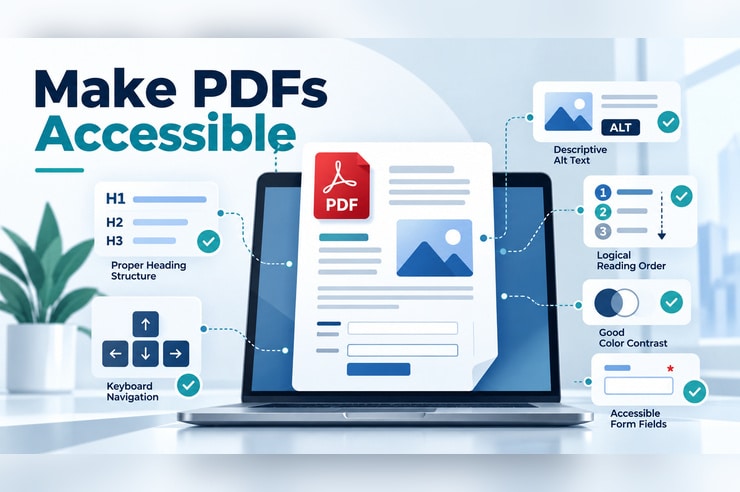
PDFs are all over websites. Forms, brochures, reports- you name it. But just because a PDF looks fine doesn’t mean everyone can use it.
Someone using a screen reader, for example, might have trouble reading a PDF that hasn’t been set up correctly.
There are a few things you can do to avoid these issues. I’ll walk through what to look for, how to fix common problems, and some tools we use to check PDF accessibility.
What Makes a PDF ADA Compliant?
An accessible PDF should allow users to read, understand, and navigate its content, including people who rely on assistive technologies.
This means paying attention to more than just the aesthetics of the document. Things like headings, reading order, image descriptions, and properly labeled form fields all play a role.
How to Make a PDF Accessible
If you’re creating a new PDF, it’s usually easier to fix accessibility before exporting the document. Microsoft Word, Adobe Acrobat, and other document editing tools offer features to help with this.
Here are some of the most important things to check.
1. Use Proper Headings and Document Structure
Headings help organize your content and allow screen reader users to navigate between sections.
Instead of making text larger or bold to create a heading, use actual heading styles such as Heading 1, Heading 2, and Heading 3.
When exported correctly, these headings become part of the PDF’s tag structure, helping assistive technologies understand how the document is organized.
2. Add Alternative Text to Images
One of the easiest to add but most forgotten ADA flags we see is alt text on images. Any image that provides meaningful information should have alternative text, commonly called alt text.
For example, if your PDF contains a chart showing yearly sales, its alt text should describe the information being presented rather than simply saying “sales chart.”
Decorative images that don’t provide important information can be marked as decorative so screen readers skip them.
3. Check the Reading Order
A PDF might look perfect visually but still be read in the wrong order by a screen reader.
This is very common with documents that use columns, tables, or complex layouts.
Make sure the reading order follows the same logical sequence someone would use when reading the document visually. Adobe Acrobat Pro includes tools to inspect and adjust reading order.
4. Make Sure Text Is Readable
Another major issue with non-compliant documents is making sure your text has enough contrast against its background to easily be read.
Under WCAG Level AA, normal text generally needs a contrast ratio of at least 4.5:1, while large text requires at least 3:1.
You should also avoid using color alone to communicate important information. For example, highlighting required fields in red without another indicator could make them difficult for some users to identify.
5. Use Accessible Links, Tables, and Forms
If your PDF includes links, tables, or interactive form fields, these elements need some additional detail.
- Links: Use descriptive text instead of vague phrases like “click here.”
- Tables: Identify header cells and keep the table structure simple whenever possible.
- Forms: Make sure fields have descriptive labels and can be completed using a keyboard.
These details make a big difference for users who rely on assistive technology.
6. Make Sure the PDF Contains Actual Text
Scanned documents are another common accessibility issue.
Scanned PDFs can be a problem because they’re basically just images of text. This makes it difficult for screen readers to read them.
To fix this, you can use a tool like Adobe Acrobat to recognize the text in the document. Just make sure to check that everything reads correctly afterward.
How to Test a PDF for Accessibility
Once you’ve made your changes, it’s a good idea to test your PDF to make sure everything is working correctly. There are a few tools that can help with this.
Adobe Acrobat Pro (My Recommendation)
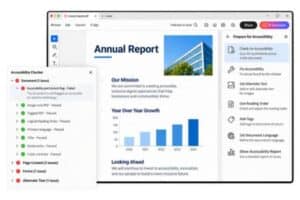
Adobe Acrobat Pro has a built-in accessibility checker that looks for common issues like missing tags, incorrect reading order, and other accessibility problems.
To run a check:
- Open your PDF in Adobe Acrobat Pro.
- Go to All Tools > Prepare for Accessibility.
- Select Check for Accessibility.
- Review the results and fix any issues found.
PAC (PDF Accessibility Checker)
Another free tool is PAC, which checks your PDF for accessibility issues.
It’s a good option if you want a second opinion after running Adobe’s accessibility checker.
Manual Testing
Automated tools are helpful, but they won’t catch everything.
Try navigating through your PDF using only your keyboard or a screen reader like NVDA or JAWS. Make sure the content is read in the correct order, links work, and everything makes sense.
Keep Your PDFs Accessible
PDF accessibility is easy to overlook, especially if you’re regularly uploading new documents to your website.
The easiest way to stay on top of it is to check your PDFs before uploading them. Making sure they’re properly formatted and running a quick accessibility check can save you from having to fix issues later.
And remember, even if your website is accessible, the PDFs linked on it should be accessible too.
At Oyova, we help businesses find and fix accessibility issues across their websites and digital content. If you’re unsure where your website stands, our team can help you get started. Connect with us today.
Related Posts

What Are the ADA Website Compliance Requirements in 2026?
Website accessibility lawsuits are still a concern for American businesses. In 2025, federal courts received 3,117 of these...
Read More
What Is ADA Website Compliance & How to Become Compliant
Maybe it started with a demand letter. Perhaps a vendor warned you that your website isn’t accessible. Either...
Read More
ADA Website Accessibility Remediation: What to Expect & How It Works
Many websites that look and work great may still need website accessibility remediation, and most owners don’t find...
Read MoreOur Awards